
Today we are going to learn how to read and change the programmed settings and information stored on the popular HC-05 Bluetooth module. In this tutorial we will learn how to check what firmware version is installed, change the device name, baud rate, etc.
In part one we learned how to add two-way Bluetooth communication to the Arduino. If you missed it, please check it out here.
Like similar devices, the HC-05 modules physically interface with other devices using a serial interface and AT commands. In fact, reading or changing the HC-05’s settings is very similar to reading and changing the settings of the ESP8266 Wi-Fi module, which I demonstrated on a previous post.

To access the HC-05 serial interface we use a USB to serial adapter. The connection is very simple, the transmit pin of the HC-05 connects to the receive pin of the USB to serial adapter and vice-versa and the GND (ground) and VCC pins connect to its counterparts. However we must be careful and use the same logic level used by the HC-05 module. Bare HC-05 modules (without breakout board) accept only 1.8 to 3.3V levels. Most (if not all) HC-05 modules with breakout boards also use 3.3V logic level, so a level adapter may be needed between the USB to Serial adapter TX pin and the HC-05 RXD pin if your USB to Serial adapter is only capable of using 5V logic levels.

If you don’t have a logic level adapter you can use a simple two resistor voltage divider, like we did in part 1 of the HC-05 tutorial. The HC-05 power supply voltage (VCC) must also be respected. If you use the wrong voltage, operation can be unreliable or the module destroyed!
Step 1 - Connections
USB To Serial Adapter HC-05 module
VCC ---------------------------> VCC
TX -----------------------------> RXD *
RX -----------------------------> TXD
GND ---------------------------> GND
* Voltage level must match! Use level converter or voltage divider.
Once the HC-05 is wired to the USB to Serial adapter, plug it in your computer.
Step 2 – Enter HC-05 command state
HC-05 Bluetooth modules can work in (normal) data state or in command state. Once powered, the HC-05 module led should start blinking. If the led blinks approximately every two seconds, it means the HC-05 module is in command state, ready to accept AT commands, which is what we want. If the led blinks very fast it means the HC-05 module is in data state, which we don’t want.
HC-05 modules with a button seem to default to data state when powered, while modules without a button are wired to enter into command state when powered. Behaviour is not the same for all HC-05 modules!
Entering command state:
Disconnect VCC from the HC-05 module. Press the small button and, while pressing the button, reconnect VCC to the HC-05. After a few moments the led will start to blink at a slow rate. Stop pressing the button. The module is now in command state. If your HC-05 Bluetooth module doesn’t have a button you can enable command mode by applying 3.3V to the HC-05 KEY pin.
To communicate with the HC-05 module via the serial interface we use a serial communications (terminal) program. I will demonstrate using RealTerm. You can download RealTerm here.
Before we can start typing commands we must configure the port and baud rate in RealTerm.You can see what port is being used by your USB to Serial adapter in Windows Device Manager. Select the correct port. Most HC-05 modules appear to use a default baud rate of 38400. Select 38400. Then press the Change button.
The HC-05 serial interface requires a CR (carriage return) and a LF (line feed) at the end of every command. Set your serial terminal program to automatically send a CR+LF.
AT commands
Please note that HC-05 Bluetooth modules come with different firmware versions installed. This means that your module may use a slightly different syntax for some AT commands or it may have fewer or more AT commands than other modules. At the end of this tutorial I give some advice on how to get the AT commands list for your HC-05 Bluetooth module.
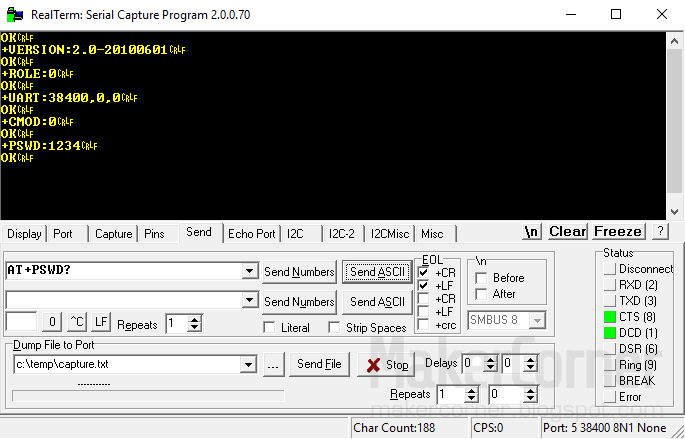
Test the serial interface
Type “AT” and press Send. The HC-05 should respond with OK if the command is accepted. If garbled text is displayed, this means the baud rate setting in RealTerm is wrong. Change the baud rate and try again until OK is displayed.
Check firmware version
To know what firmware is installed on the device, type “AT+VERSION?”
Check serial parameters (baud rate)
To know what baud rate is being used by your HC-05 module, type “AT+UART?”. The module will return three parameters (Baud rate, Stop bit, Parity).
Set serial parameters (baud rate)
To change the baud rate, type “AT+UART=<param1>, <param2>,<param3>”. Params are Baud rate, stop bit and parity.
Restore default parameters
To restore the HC-05 to factory default settings type “AT+ORGL”.
Bluetooth Masters and Slaves
Connected Bluetooth devices form networks that are commonly referred to as piconets. And Bluetooth uses a master/slave model to control when and where devices can send data. A single master device can be connected to up to seven slave devices, but a slave device (in the same piconet) can only be connected to a single master.
The master device coordinates the communication throughout the piconet. It can send data to its slaves and request data from them. Slave devices are only allowed to transmit to and receive from their master. They can’t “talk” to other slaves in the piconet.
Master or Slave?
To know if the module is set as “Master” or “Slave”, type AT+ROLE?
The HC-05 will return 1 for Master or 0 for Slave.
Set HC-05 as “Master”
To set the HC-05 as “Master”, type “AT+ROLE=1”.
Set HC-05 as “Slave”
To set the HC-05 as “Slave”, type “AT+ROLE=0”.
Check connect mode
To check what connect mode is enabled type “AT+CMODE?”
The HC-05 will return: 0 (predefined address), 1 (any address) or 2 (slave loop).
Set connect mode
To set connect mode, type “AT+CMODE=<param>”. Where “<param>” can be 0 (fixed address), 1 (any address in range) or 2 (slave-loop).
Get working sate
To get the working state, for example, to know if the Bluetooth module is paired or not, type “AT+STATE?”. The HC-05 will return: “INITIALIZED”, “READY”, “PAIRABLE”, “PAIRED”, “INQUIRING”, “CONNECTING”, ”CONNECTED”, “DISCONNECTED” or “NUKNOW”.
Get pin code
To pair Bluetooth devices a pin code is requested for the authentication process. All HC-05 modules seem to come with a “1234” default pin code. But, if the default code was altered it can be read by typing “AT+PSWD?”.
Set pin code
To change the pin code type “AT+PSWD=<newpincode>”, where “<newpincode>” is the pin code to be set.
Check HC-05 module name
To know what name the module is using, type “AT+NAME?” while the module button is pressed.
Set the HC-05 module name
To set the module name type “AT+NAME=<newname>”, where “<newname>” is the new name to be used by the HC-05.
To get your module’s complete list of HC-05 AT commands and specs, go to the manufacturer website. If you don’t know the manufacturers name try searching by the string returned by the “AT+VERSION?” command. The module used in this tutorial returned “H-C-2010-06-01” which pointed to ITeadStudio.com where I got the HC-05 AT commands list.
Buy the parts
Buy the HC-05 Bluetooth module from Banggood
Buy the USB to Serial Adapter from Banggood
Buy the HC-05 Bluetooth module from Dealextreme
Buy the USB to Serial Adapter from Dealextreme
Buy the Logic Level Converter from Banggood
Buy the Logic Level Converter from Dealextreme
I may get a small fee if you use the links to buy the parts. Thank you for your support!
Documentation
HC-05 Bluetooth Specs and AT commands list
PART 1: Arduino Two-Way Bluetooth with HC-05 module


